
How to Build Your Compliance Library in the Multi-Organization View
Overview
If you manage more than one Greenboard organization, the Multi-Organization View is where you build the compliance program you roll out to your clients. Workflows, forms, compliance logs and User Task modules are built once in Your library, then synced to any or all of your client organizations. Each page shows which clients have an item and whose copy is out of date.
Note: Building and syncing used to happen in a separate staging organization. That work now happens directly in the Multi-Organization View, so you don't need a staging organization to build or sync content.
Step 1: Build your Workflows
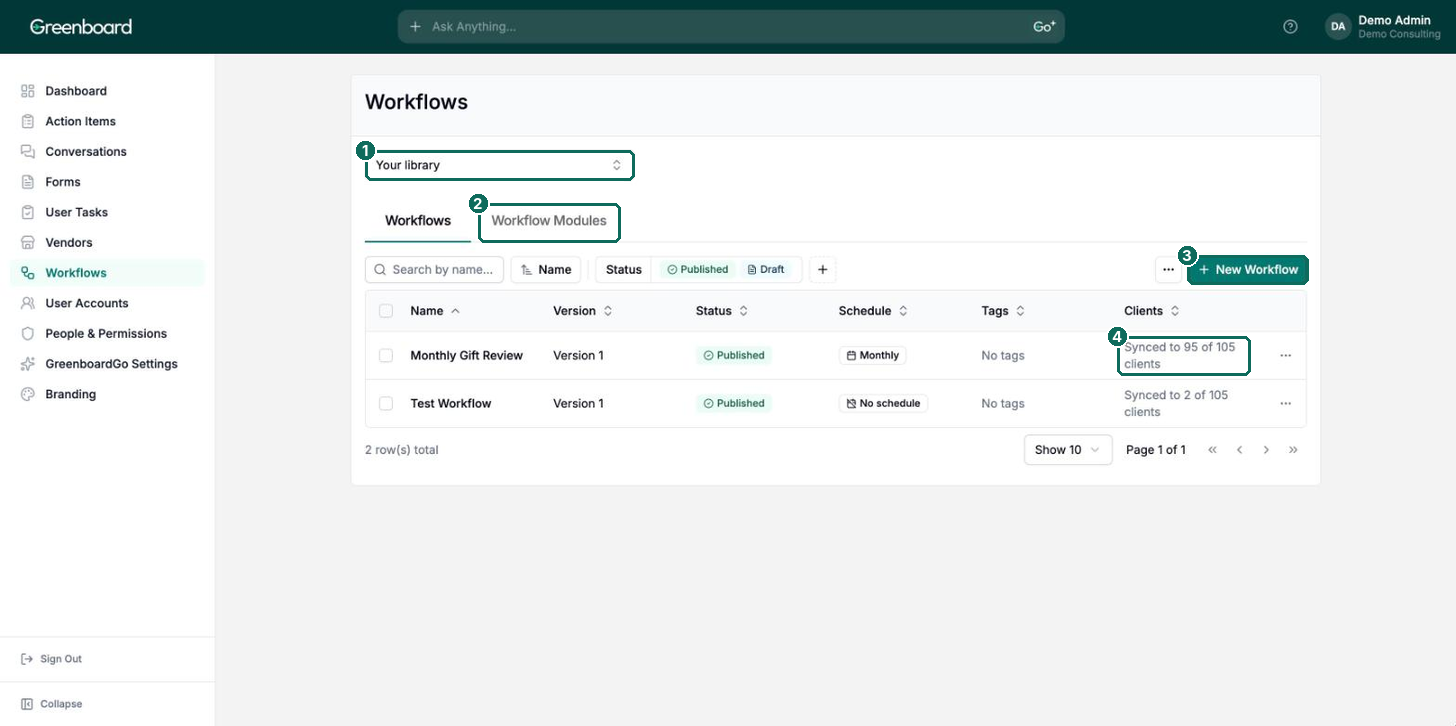
Click Workflows in the left sidebar. Your library (1) holds the recurring compliance Workflows that make up each client's Compliance Calendar. Reusable step groups live on the Workflow Modules tab (2). Click New Workflow (3) to build one, and use the Clients column (4) to see how many clients each Workflow is synced to. See How to Build and Sync Workflows for details.
Step 2: Build your forms and compliance logs
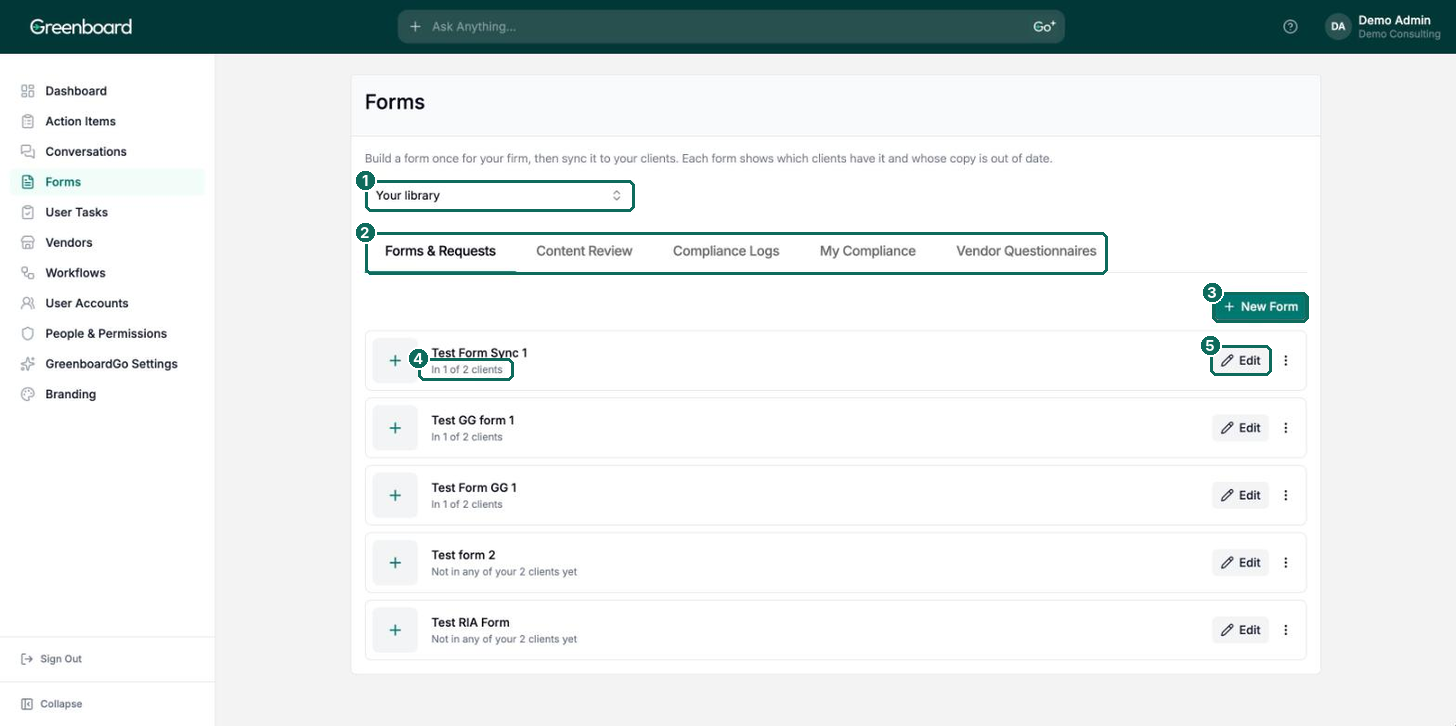
Click Forms in the left sidebar. Use the tabs (2) to work on Forms & Requests (such as preclearance or OBA forms), Content Review forms, Compliance Logs, My Compliance forms and Vendor Questionnaires. Click New Form (3) to build a new one, or Edit (5) to change an existing form. See How to Build and Sync Forms for details.
Step 3: Build your User Task modules
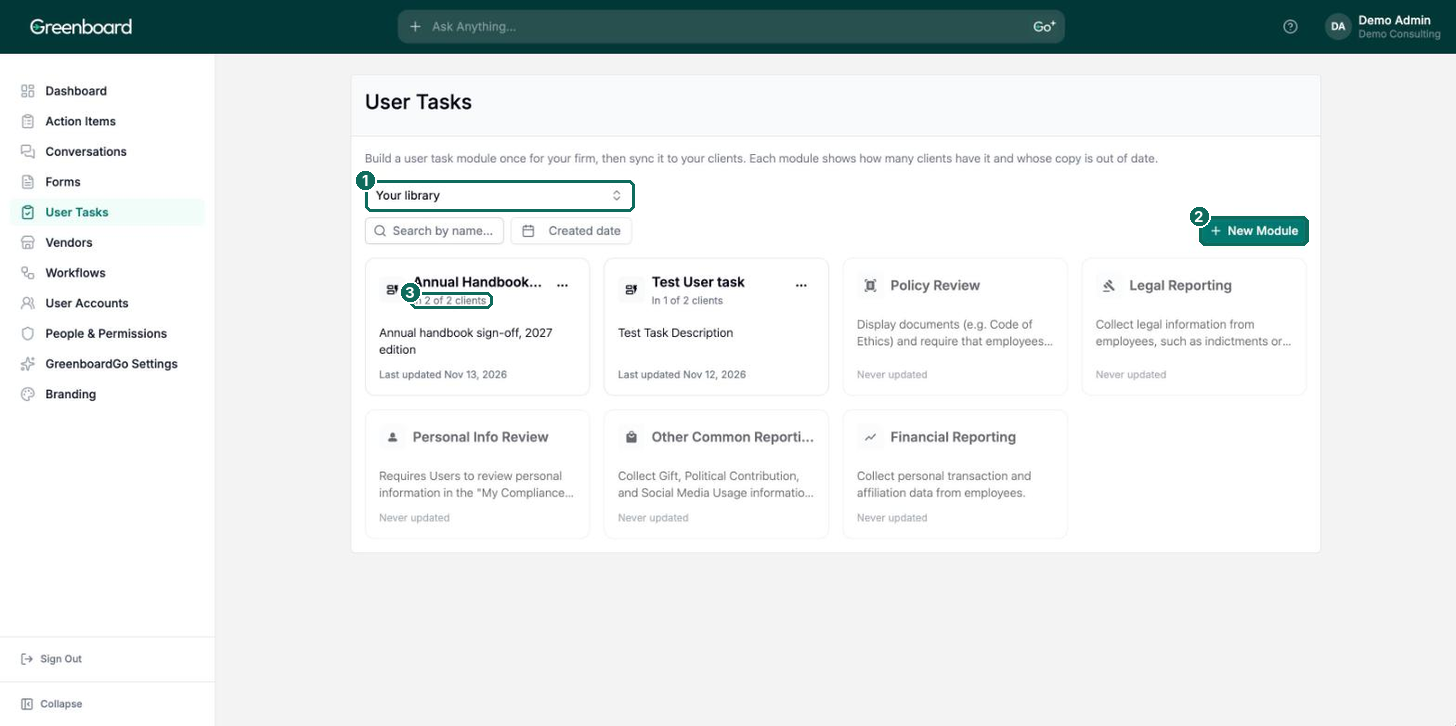
Click User Tasks in the left sidebar. Alongside Greenboard's default modules, you can build custom modules for your clients, such as a cybersecurity controls attestation for quarterly or annual reviews. Click New Module (2) to start one. See How to Build and Sync Modules for details.
Step 4: Sync to your clients and check status
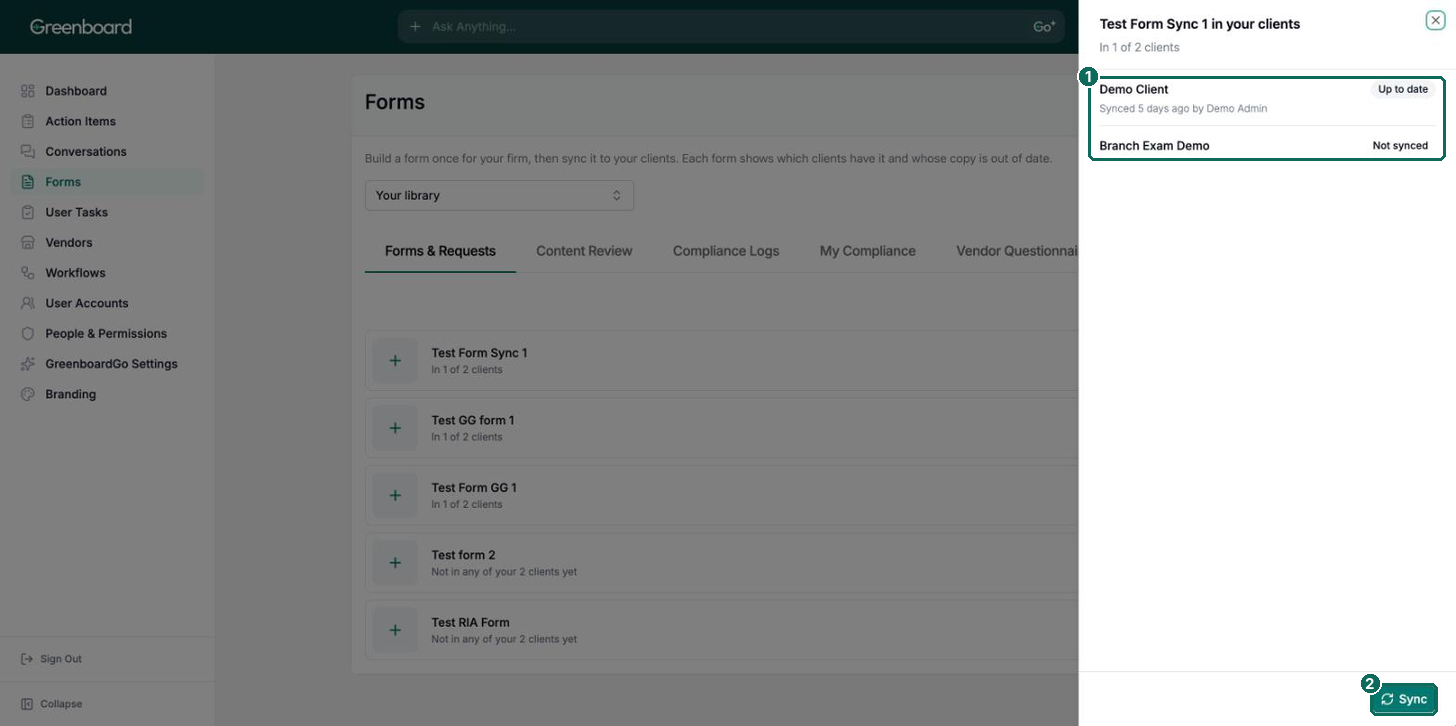
Each item has a menu with a sync option (Sync for forms, Sync to Clients for modules and Sync to Client Organizations for Workflows). Choose the clients that should receive it and click Sync. To see where an item stands, open its status view. It lists each client (1) as Up to date or Not synced, and you can click Sync (2) to send the latest version.
Step 5: Spot-check the user experience
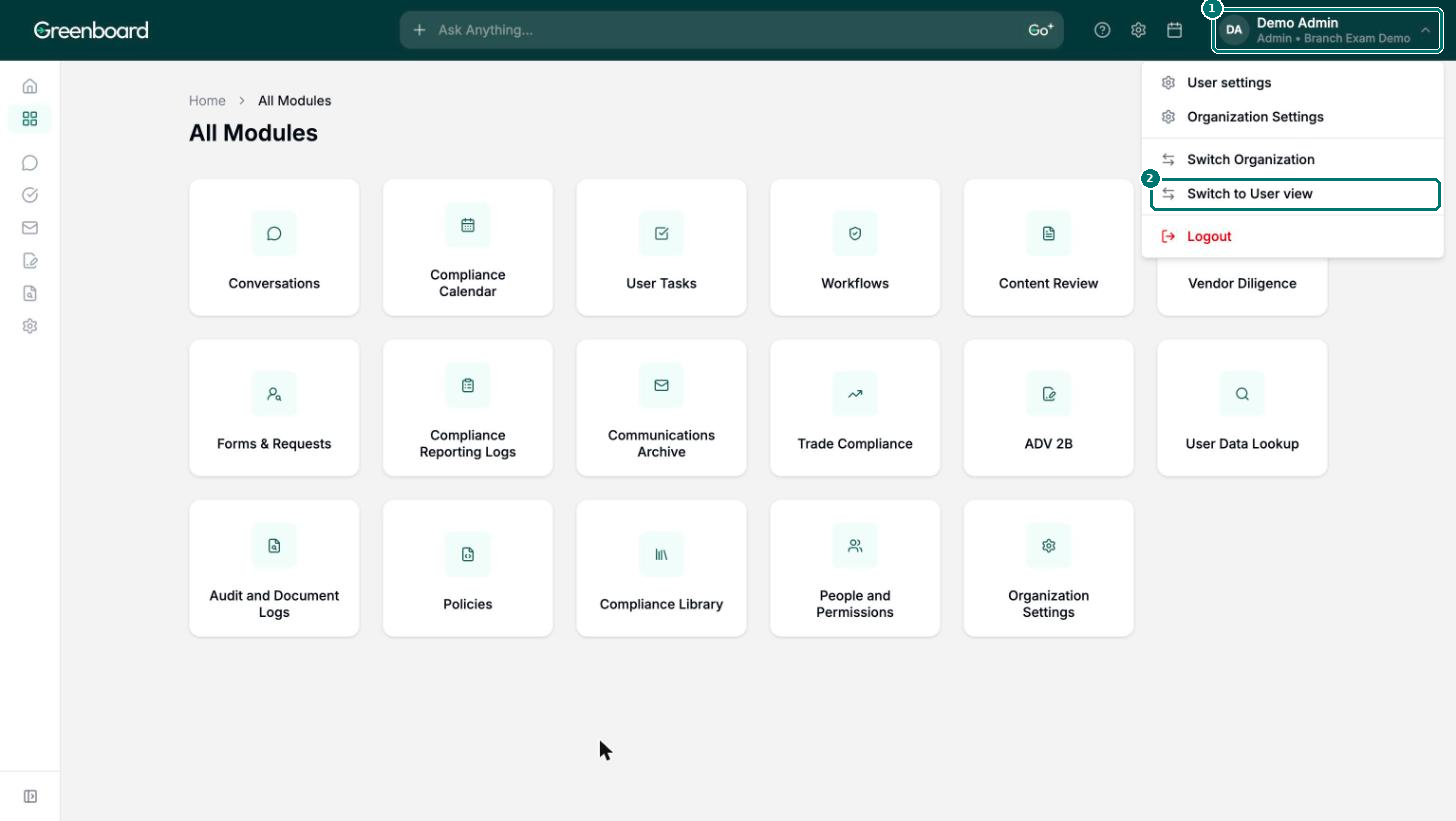
After syncing, open a client organization from the Dashboard to confirm everything landed the way you expect. To see what employees will see, click your name in the top bar (1), then Switch to User view (2).
Why This Matters
Greenboard includes compliance calendars, forms, attestations and logs by default, so every client starts with a strong baseline. Building your own library on top of that lets you add your compliance expertise once and roll it out consistently, while each client can still tailor their copy.
Questions? Contact support@greenboard.com.