
Ring Central
Overview
These RingCentral monitoring access instructions show how to enable message data export, create a JWT for Greenboard in the RingCentral Developer Console, and send it to Greenboard.
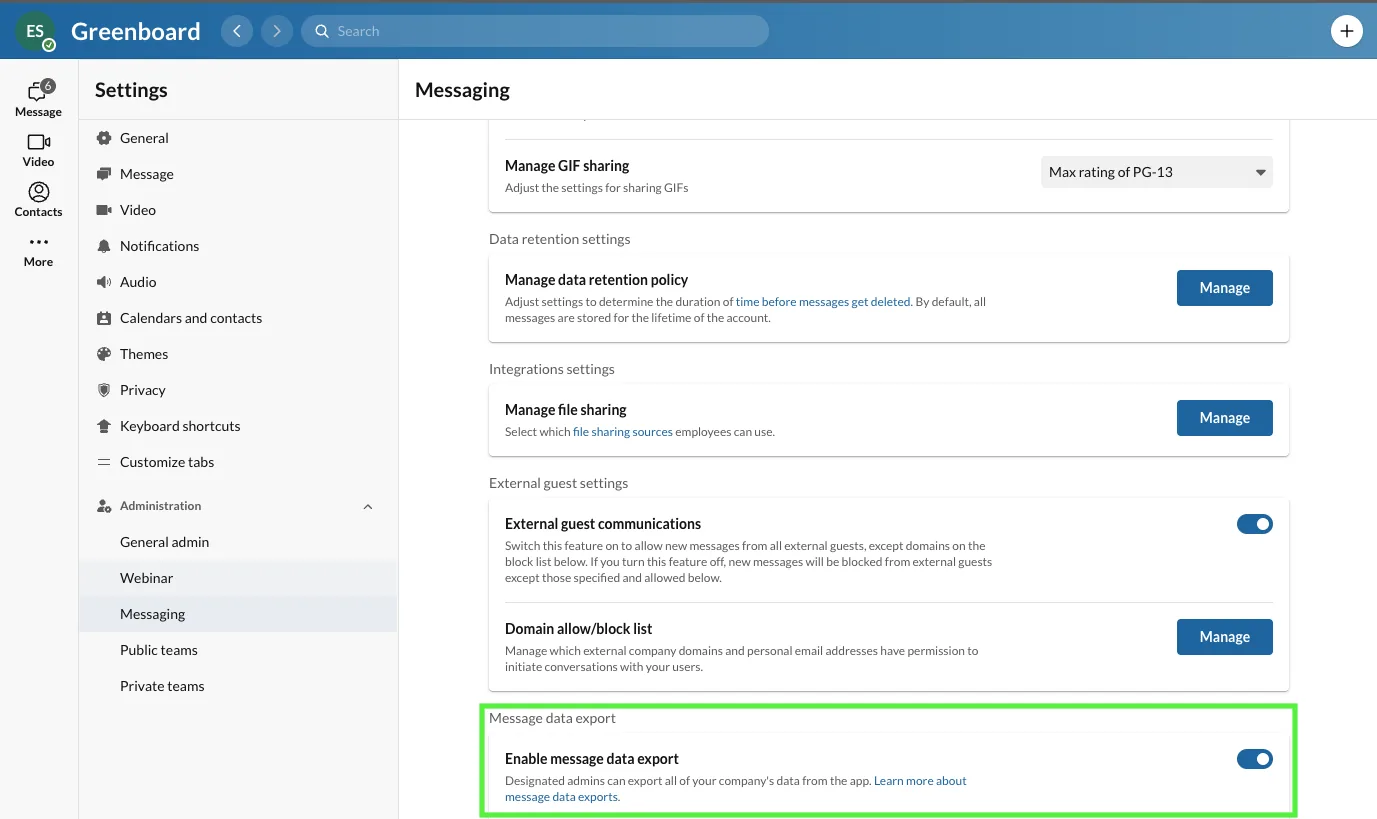
Step 1: Enable message data export
Open Ring Central and enable message data export.
Step 2: Log into the RingCentral Developer Console
Log into the RingCentral Developer Console.
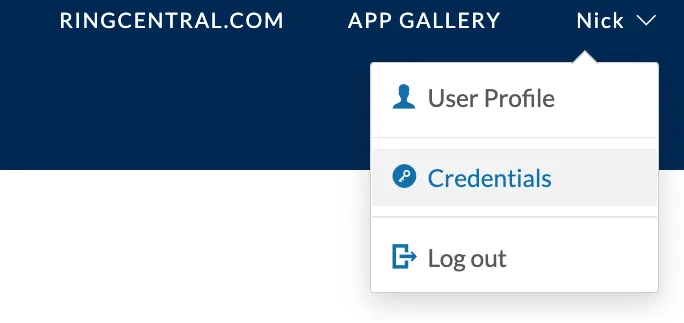
Step 3: Open Credentials
Hover your mouse over your name in the upper righthand corner, and select Credentials.
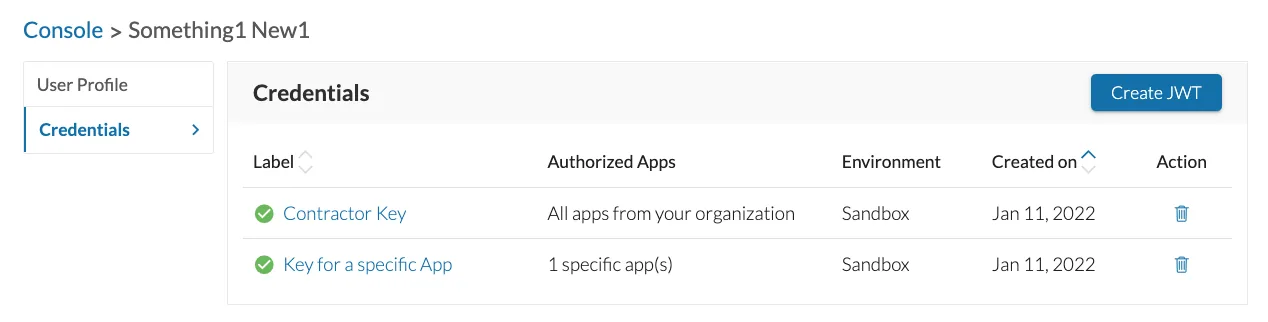
Step 4: Create a JWT
Click Create JWT.
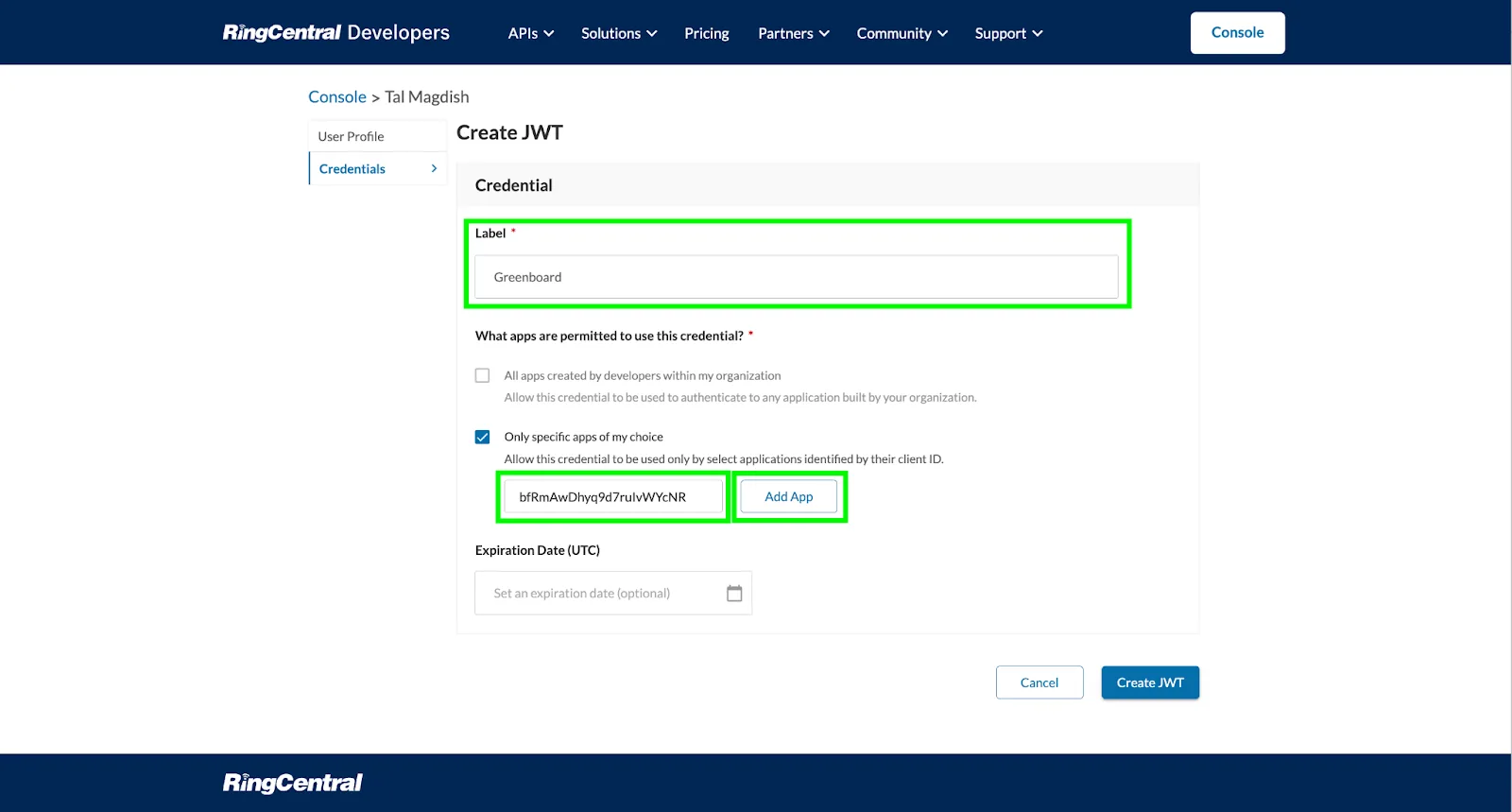
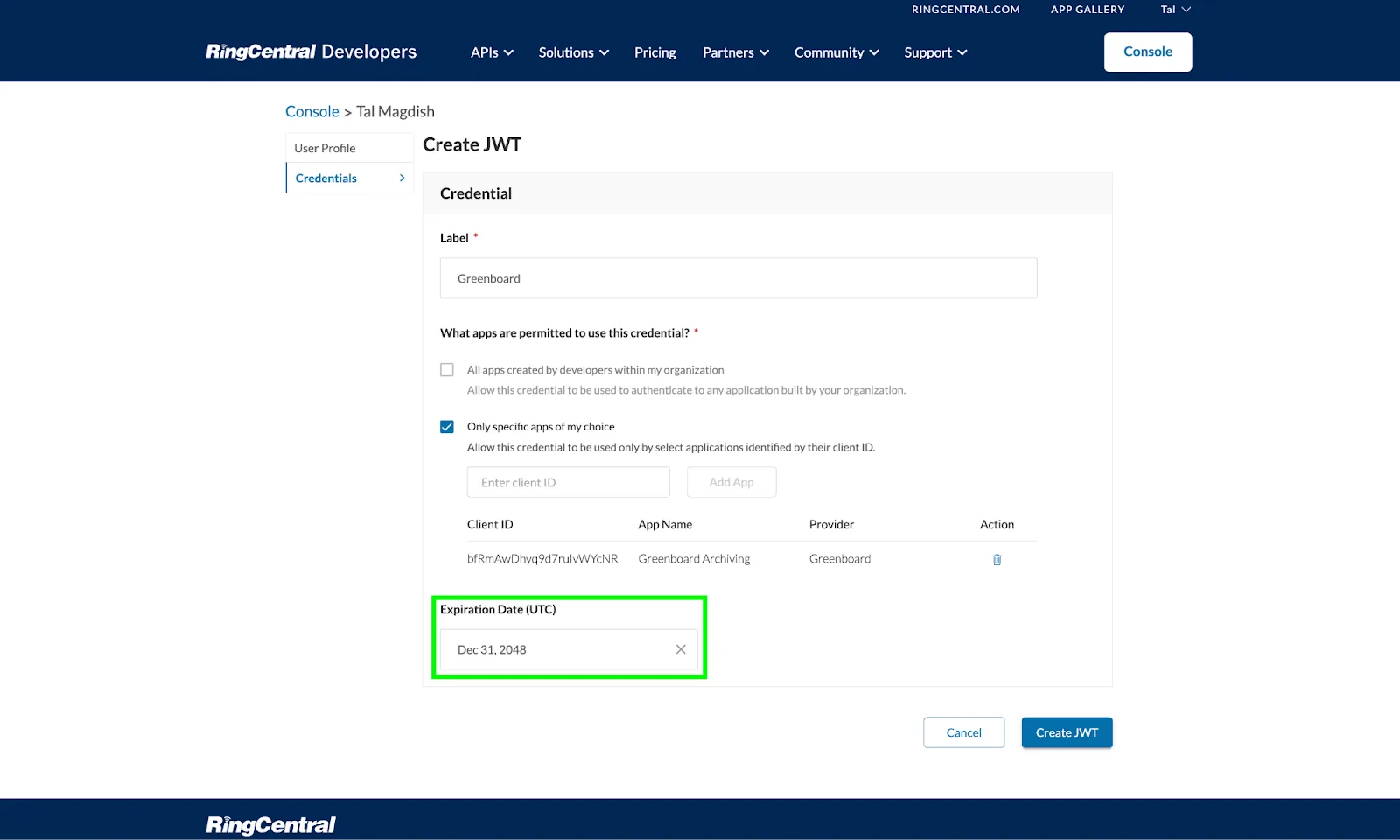
Step 5: Configure your JWT
Enter Greenboard as the label
Select “Only specific apps of my choice”
Enter bfRmAwDhyq9d7ruIvWYcNR as the client id
Click Add App
Step 6: Set the expiration date
Specify Expiration Date as Dec 31, 2048, and click Create JWT.
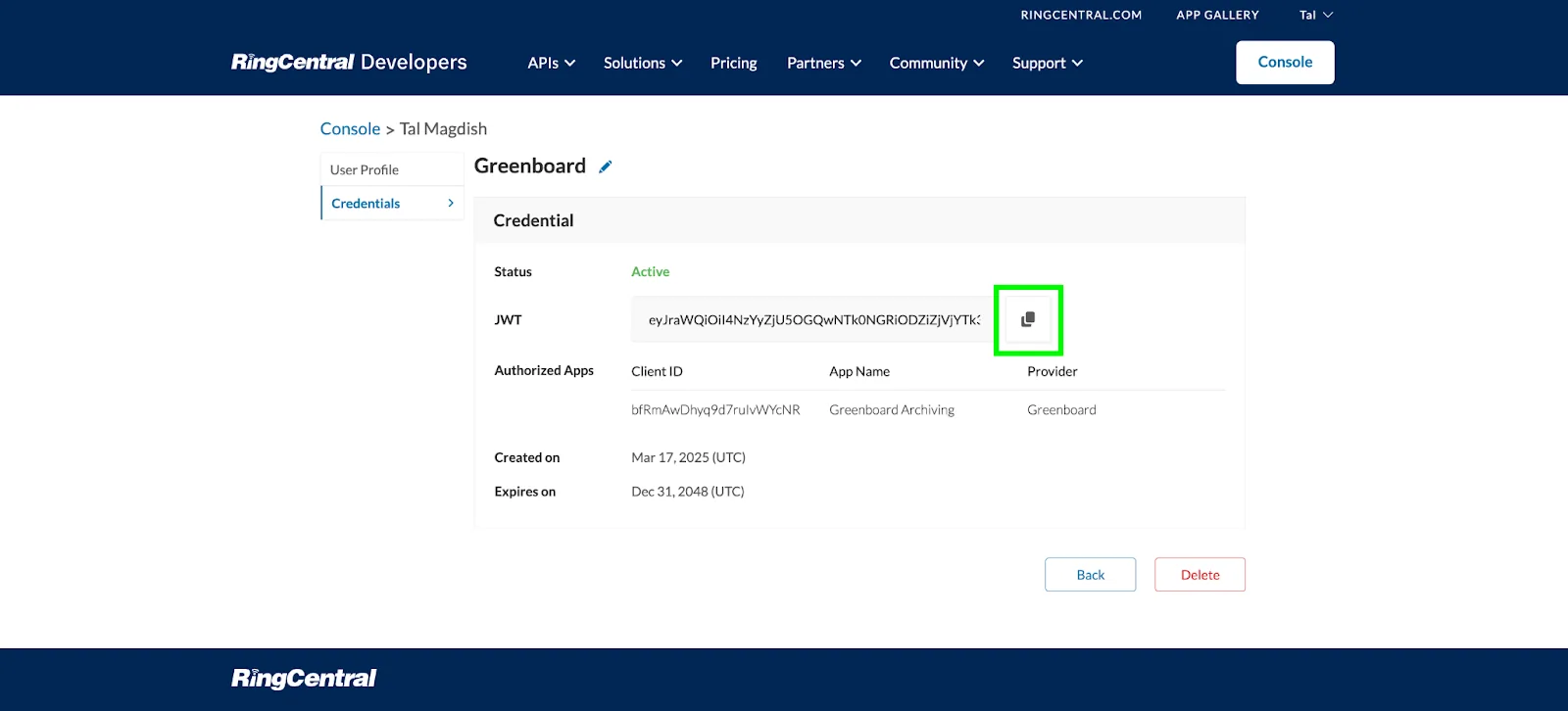
Step 7: Send the JWT to Greenboard
Copy the JWT and send it to support@greenboard.com.
Tip: As a best practice, we recommend sharing any credentials with the Greenboard team using an encrypted or secure method where possible.
Questions? Contact support@greenboard.com.