
Installing GreenboardGo in Slack
Overview
GreenboardGo is Greenboard’s AI-powered compliance assistant, and installing it in Slack lets you chat with it right from the workspace your team already uses. The setup takes a few minutes. Once the app is installed, you connect your Greenboard account and can start asking questions in a direct message with GreenboardGo.
Step 1: Click the install link we sent you
Whoever clicks the link needs permission to install apps in your organization’s Slack workspace. This depends on how your organization has configured Slack, so if the install is blocked, check with your Slack workspace admin.
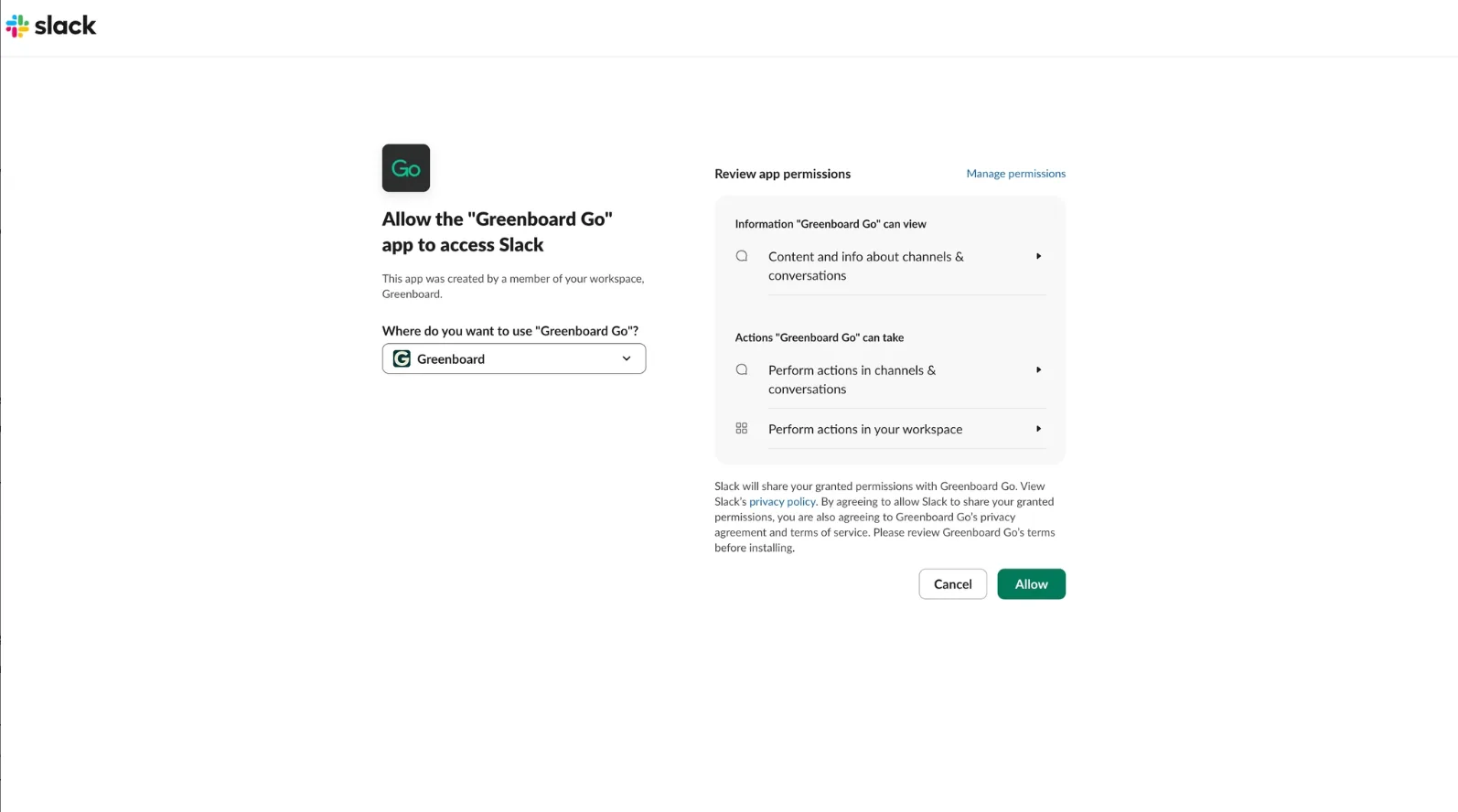
Step 2: Review the permissions and click Allow
Slack will show a screen asking you to allow the “GreenboardGo” app to access Slack. Before you click Allow, check the “Where do you want to use GreenboardGo?” dropdown and make sure it shows your organization’s workspace. You can also review the permissions the app is requesting on this screen.
Step 3: Confirm the install was successful
After you click Allow, you should land on an “Install successful” page.
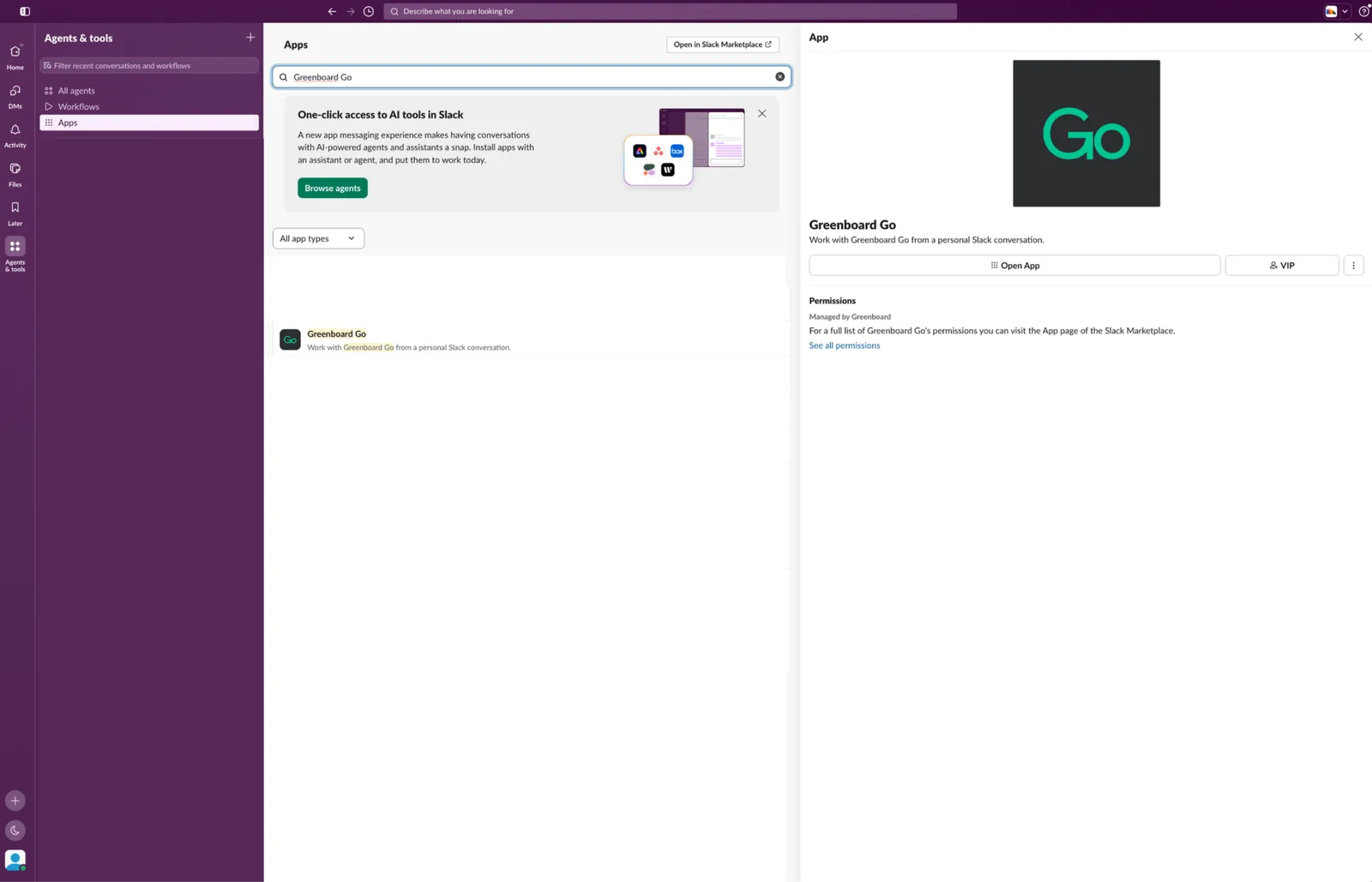
Step 4: Open Greenboard Go in Slack
In your Slack sidebar, click Agents & Tools, search for GreenboardGo, and click Open App.
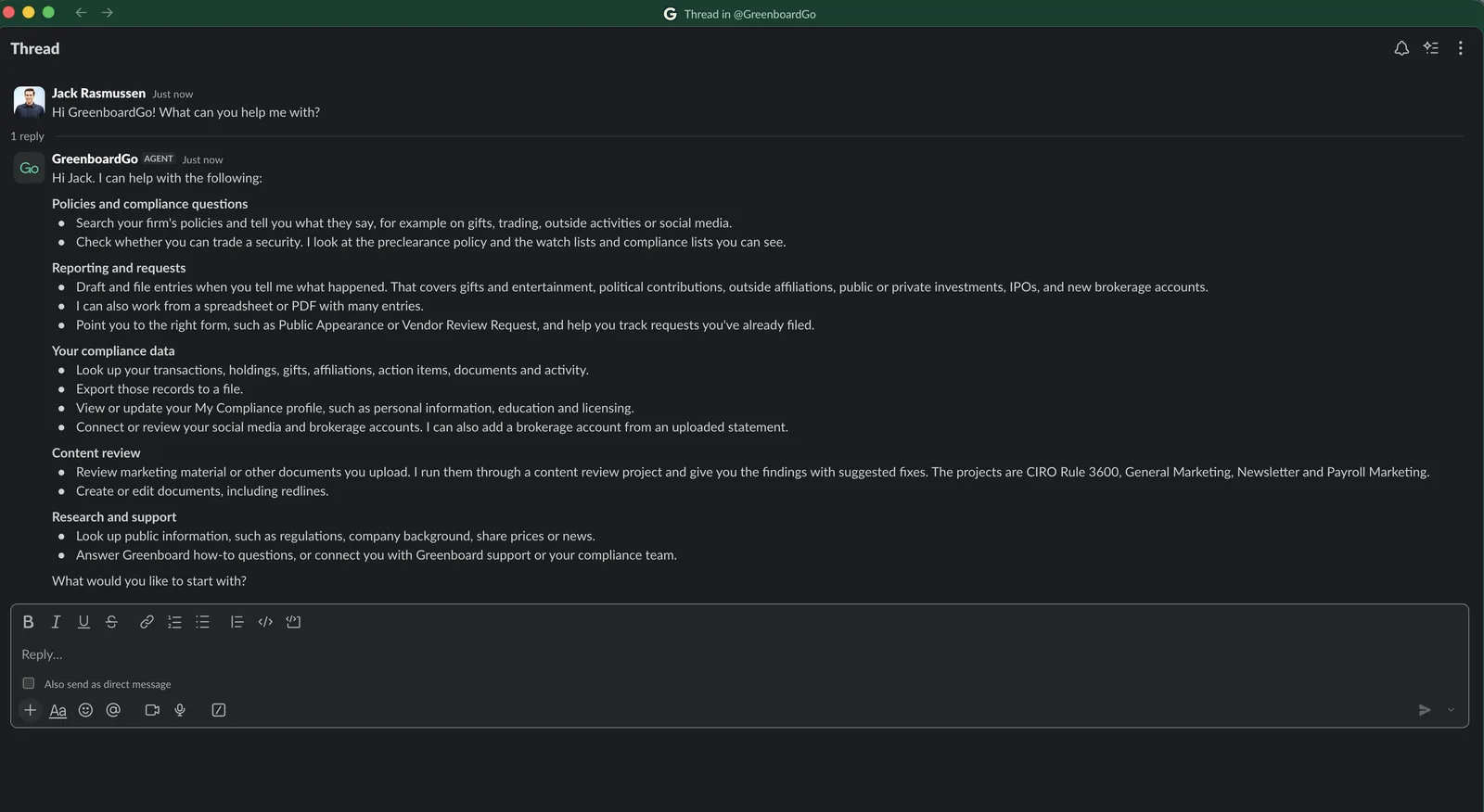
Step 5: Start chatting and connect your Greenboard account
Send GreenboardGo a message. It will reply with a link asking you to connect your Greenboard account. Click that link and follow the prompts to sign in, and you’re ready to go.
Why Use This?
Work where you already are. GreenboardGo lives in Slack, so you can get answers without switching tools or logging in to another window.
Quick, one-time setup. Installing the app takes just a few minutes, and connecting your account is a one-time step.
Controlled by your organization. Because installation requires workspace permissions, your Slack admins stay in control of which apps are added to your workspace.
Installs into your organization’s own Slack workspace
Opens from Agents & Tools in the Slack sidebar
Requires a one-time connection to your Greenboard account
Questions? Contact support@greenboard.com.