
MFA Instructions
Overview
Multi-Factor Authentication (MFA) adds an extra layer of security to your Greenboard account by asking you to confirm it's really you, in addition to your password, when you log in. You can verify with a text message (SMS), an authenticator app such as Google Authenticator, or your device's fingerprint reader or face recognition.
Enrolling in MFA for the First Time
If you have never set up MFA before, you'll be prompted to enroll the next time you log into Greenboard.
Step 1: Enter your email address
On the Greenboard login screen, enter your Email address (1) and click Continue (2).
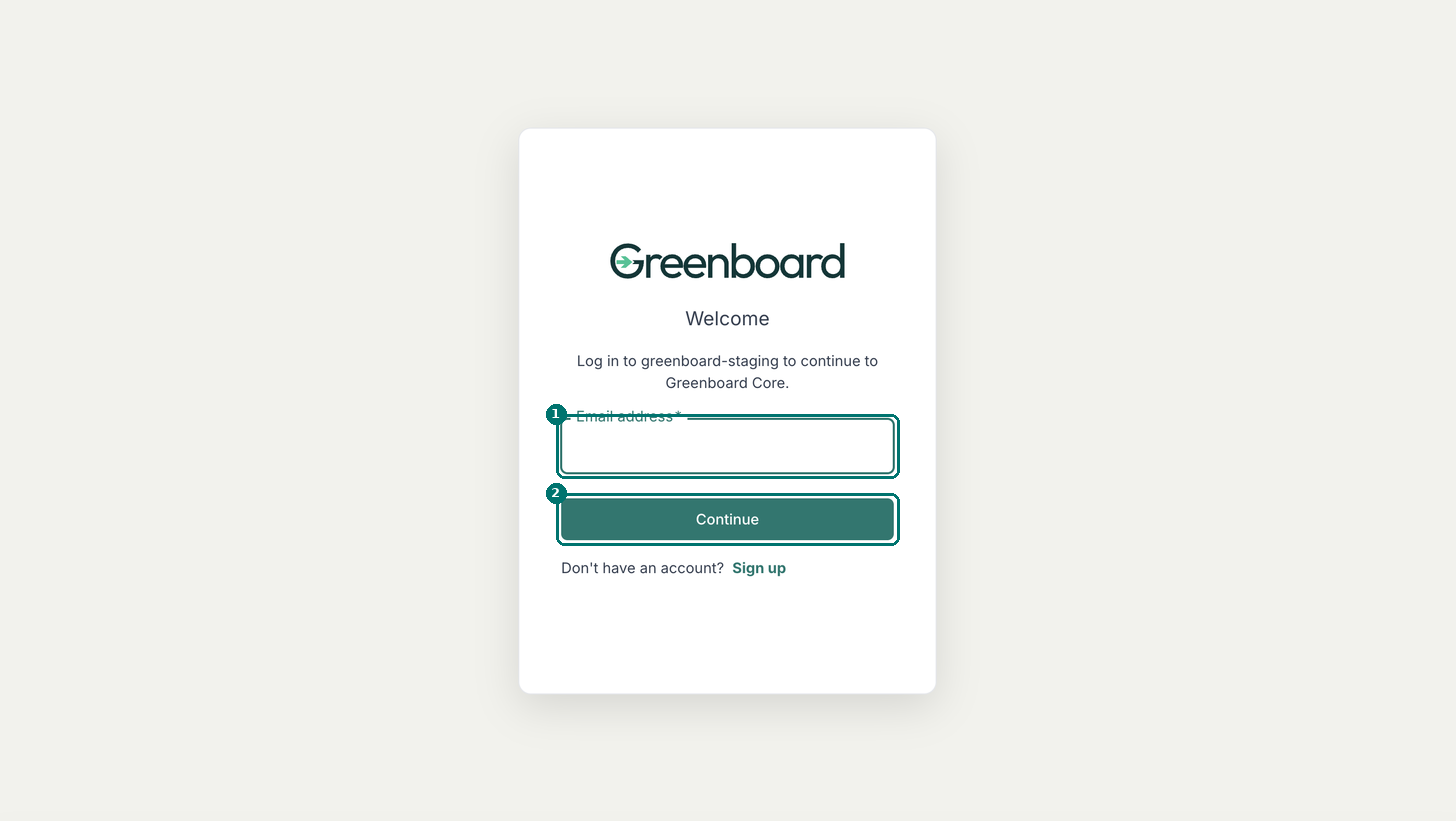
Screenshot 1: The Greenboard login screen.
Step 2: Enter your password
Enter your Password (1) and click Continue (2). If you've forgotten it, click Reset password. If this is your first time logging in, follow the prompts to set your password.
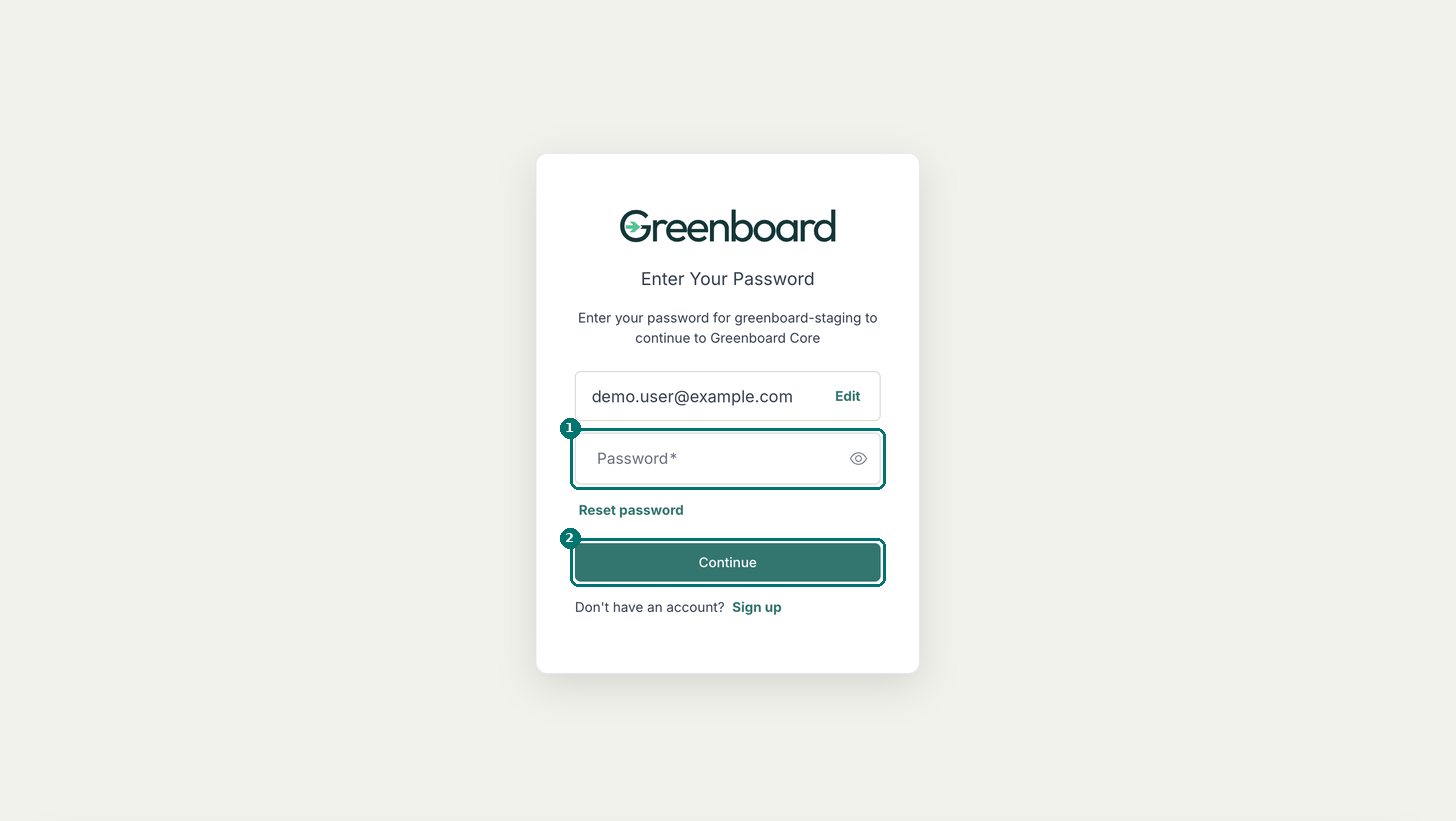
Screenshot 2: The Enter Your Password screen.
Step 3: Secure your account with SMS
Next, you'll be prompted to secure your account. The default option is SMS. Choose your country (1), enter your phone number (2) and click Continue (3). Greenboard texts you a code to enter on the next screen. To use a different method, click Try another method (4).
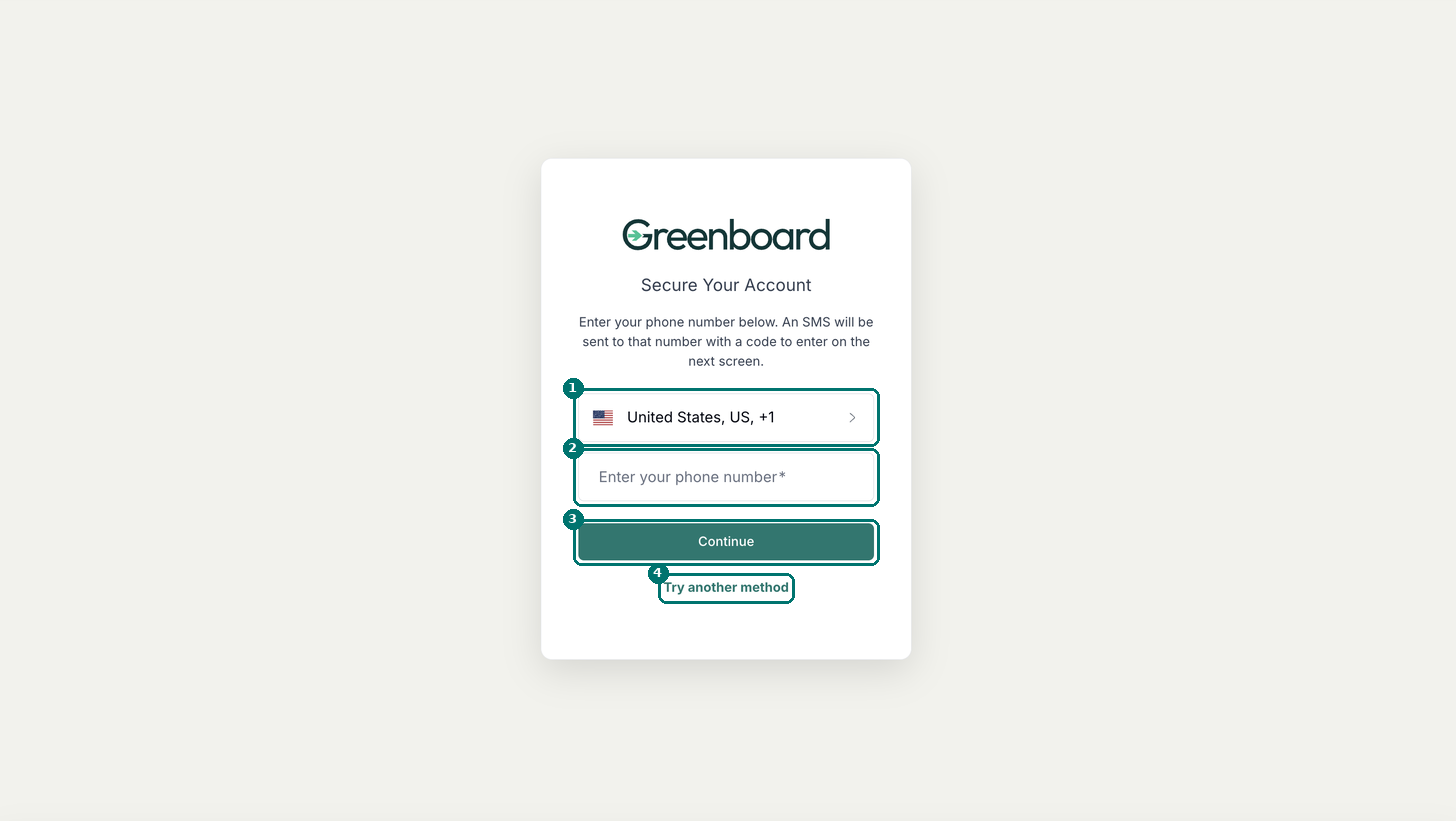
Screenshot 3: The Secure Your Account screen for SMS.
Important: The SMS option does not work for international numbers. Click Try another method and choose an authenticator app or fingerprint or face recognition instead.
Step 4: Choose another verification method (optional)
After you click Try another method, choose how you'd like to verify your identity: SMS (1), Google Authenticator or similar (2) or Fingerprint or Face Recognition (3).
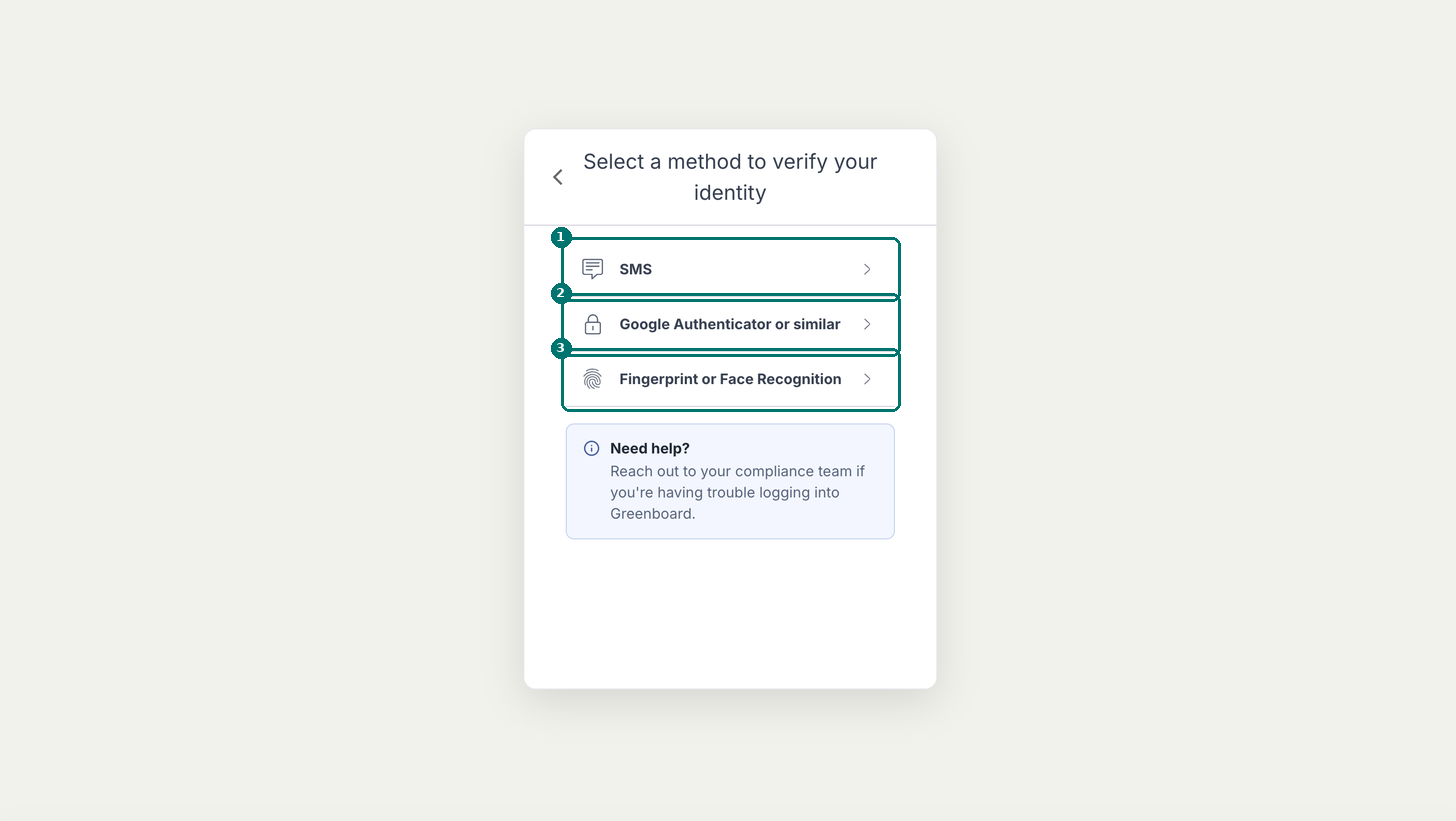
Screenshot 4: Select a method to verify your identity.
If you choose Google Authenticator or similar, scan the QR code (1) with your authenticator app, enter the one-time code it shows (2) and click Continue (3). If the code won't scan, click Trouble Scanning? to set it up another way.
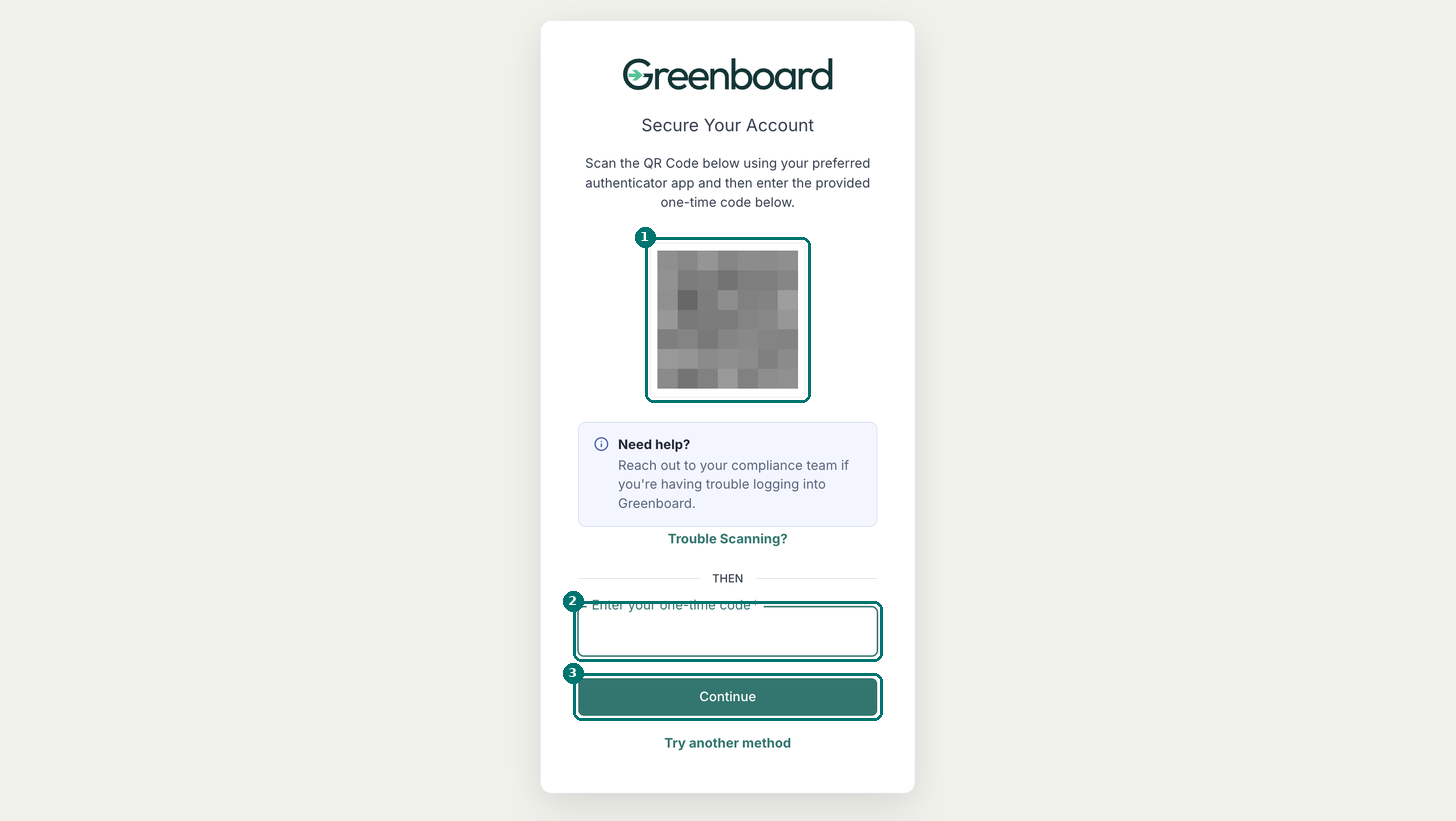
Screenshot 5: Setting up an authenticator app. The QR code is blurred in this example.
If you choose Fingerprint or Face Recognition, click Continue (1) and follow your device's prompts to use its fingerprint reader or facial recognition.
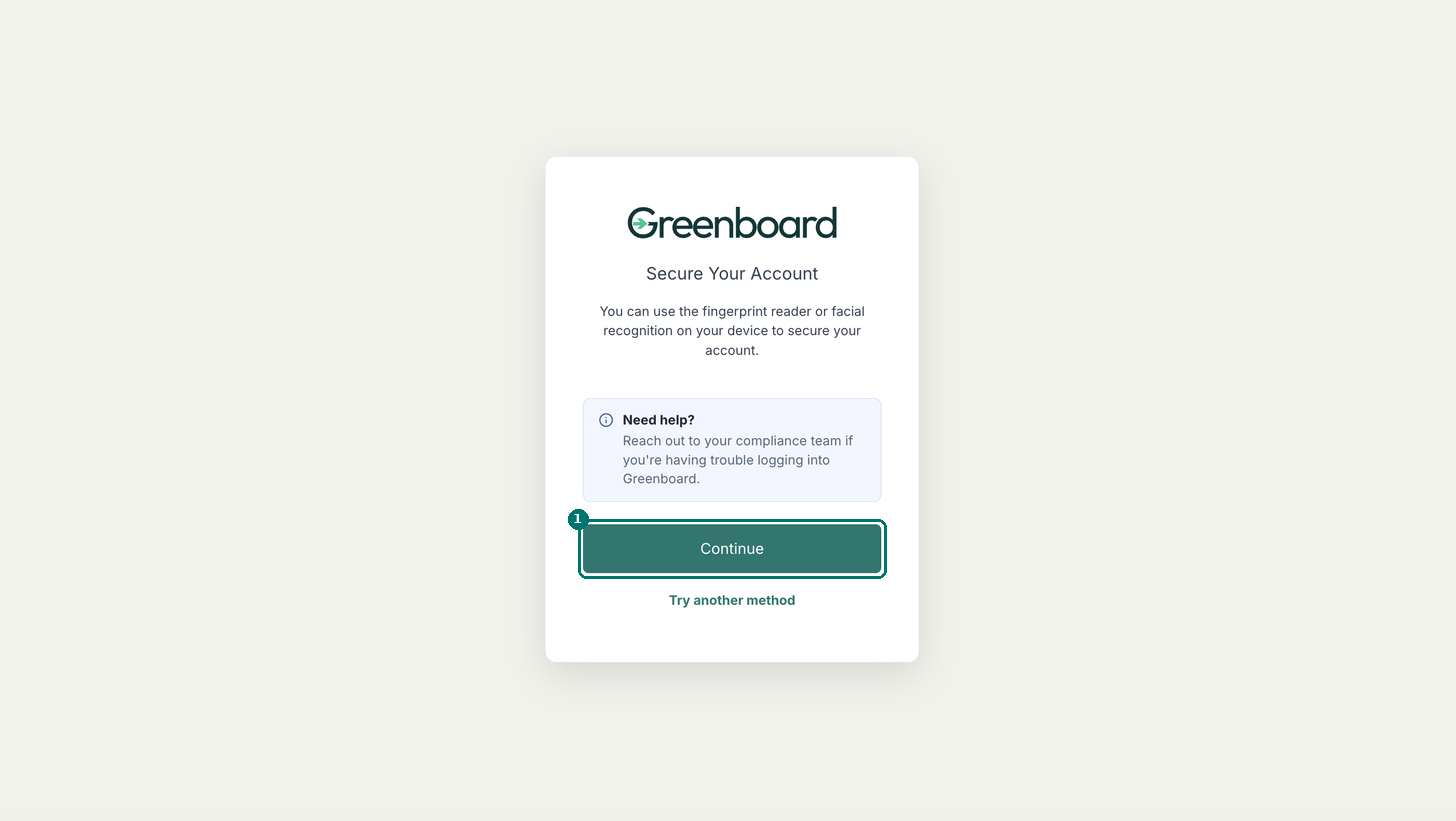
Screenshot 6: Setting up fingerprint or face recognition.
Once you've finished one of these steps, your MFA enrollment is complete and you'll be signed in to Greenboard.
Logging In Once MFA Is Set Up
After you enter your email address and password, Greenboard asks you to verify using the method you set up: enter the code sent by text message, enter the code from your authenticator app, or use your fingerprint or face.
For fingerprint or face recognition, check Remember this device for 30 days (1) if you're on your own device and don't want to be asked again for a while, then click Continue (2) and follow your browser's steps.
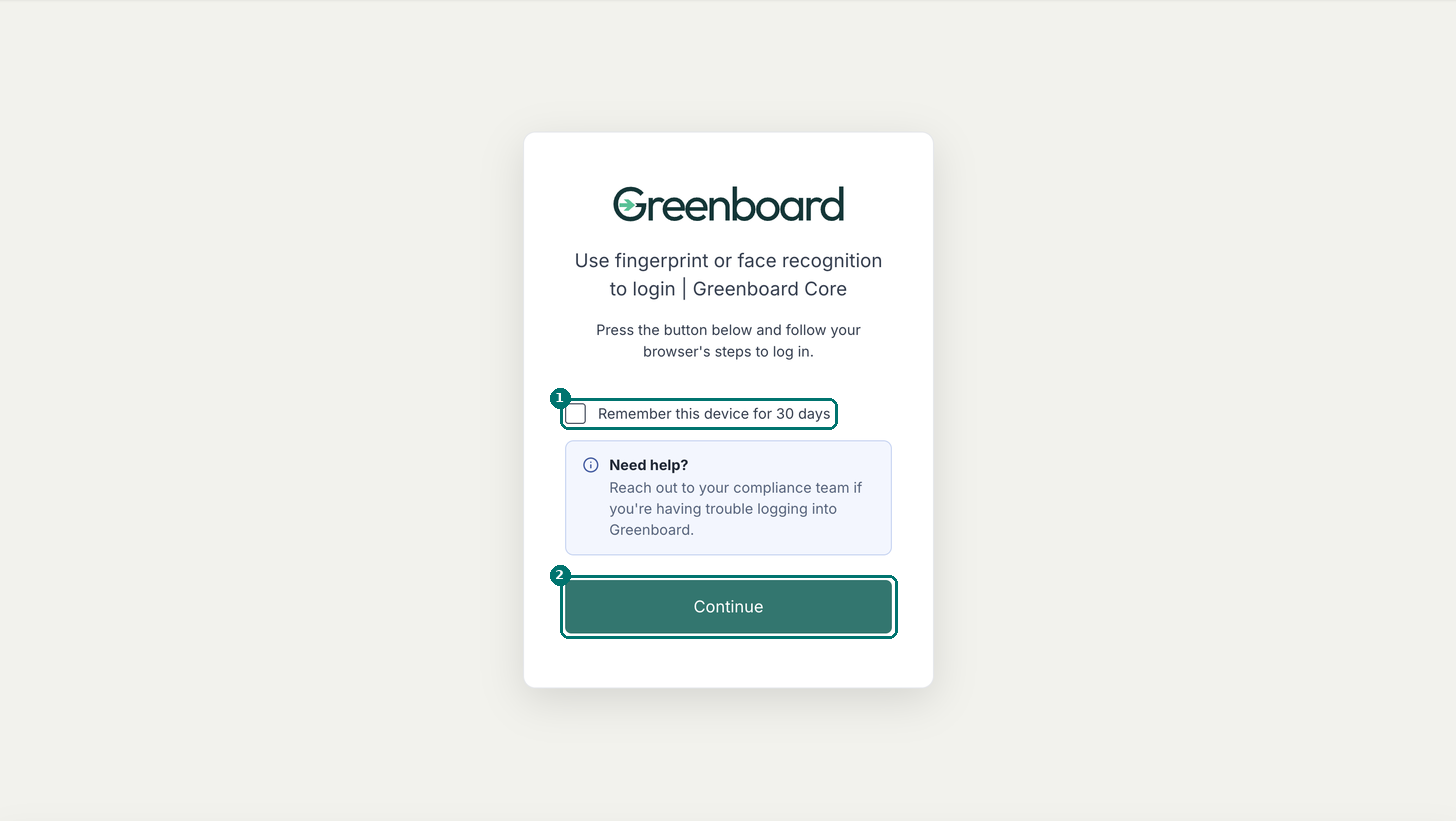
Screenshot 7: Logging in with fingerprint or face recognition.
Note: If you no longer have access to your original method, reach out to your compliance team to reset your MFA so you can set up a new method.
Questions? Contact support@greenboard.com.