
MyRepChat
Overview
These MyRepChat monitoring access instructions show how to connect MyRepChat to the Greenboard archive using an email archiver and your custom Greenboard journaling address.
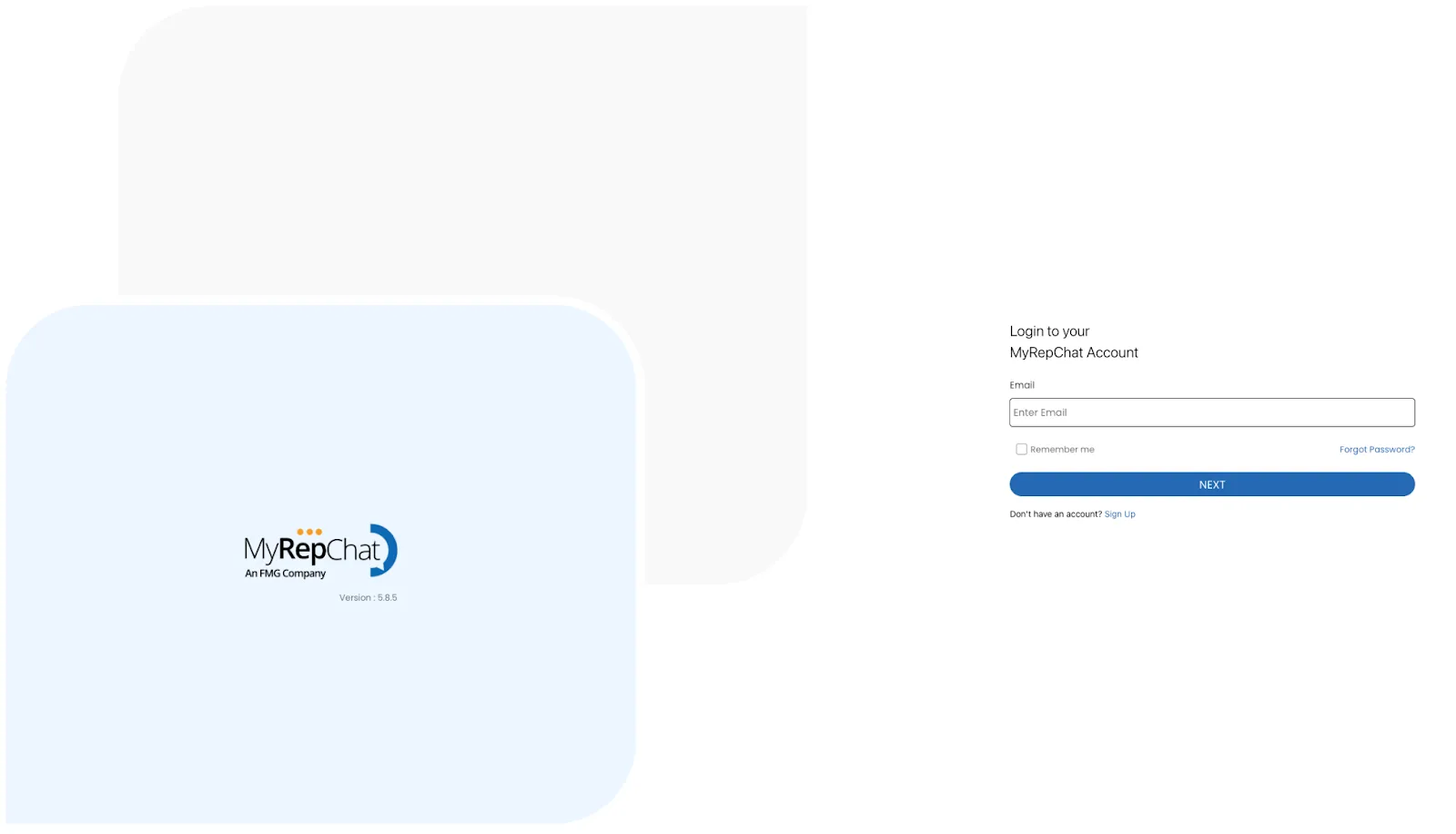
Step 1: Log in to your MyRepChat Administrator Account
Log in to your MyRepChat Administrator Account: Link
Step 2: Go to the Settings page
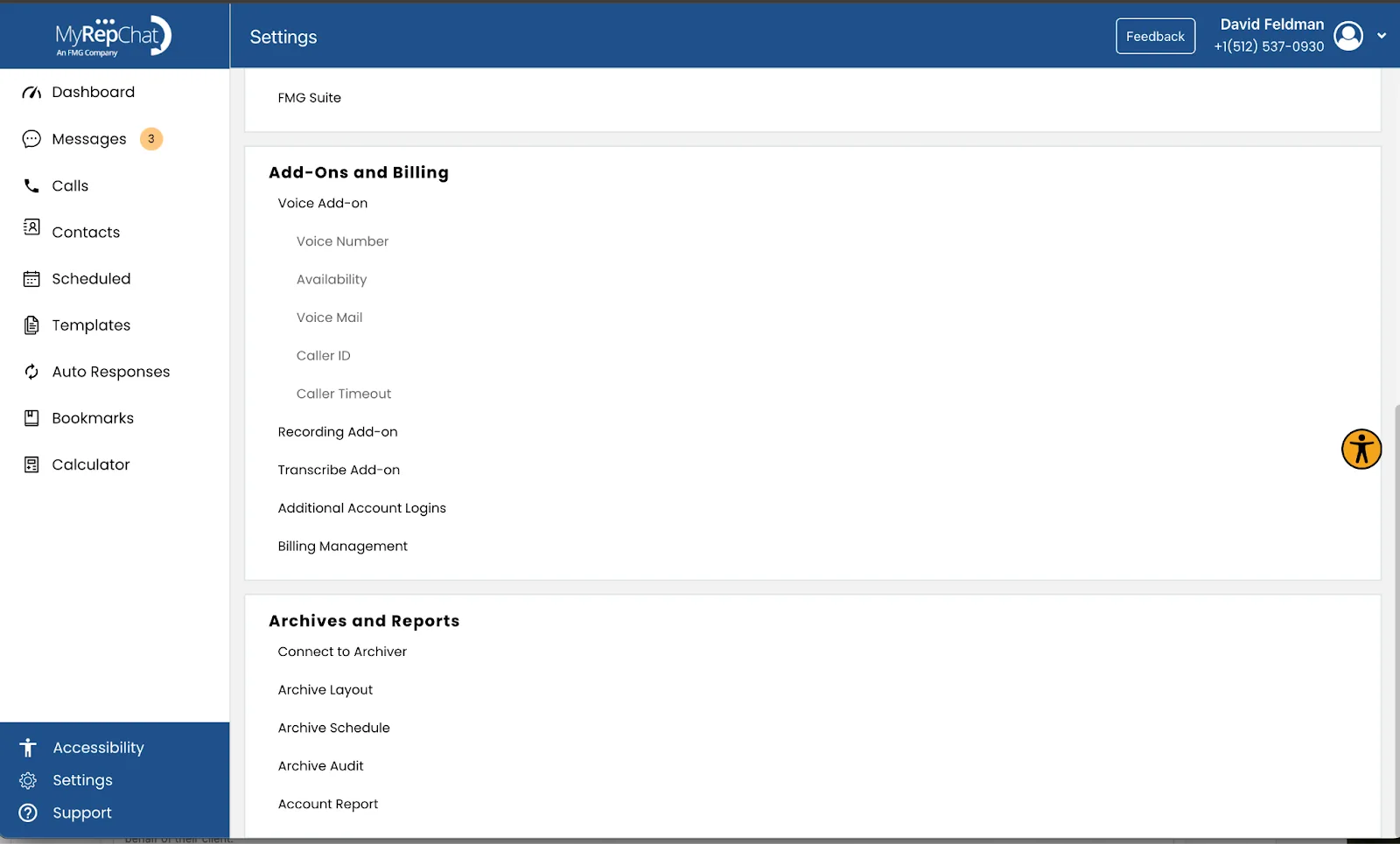
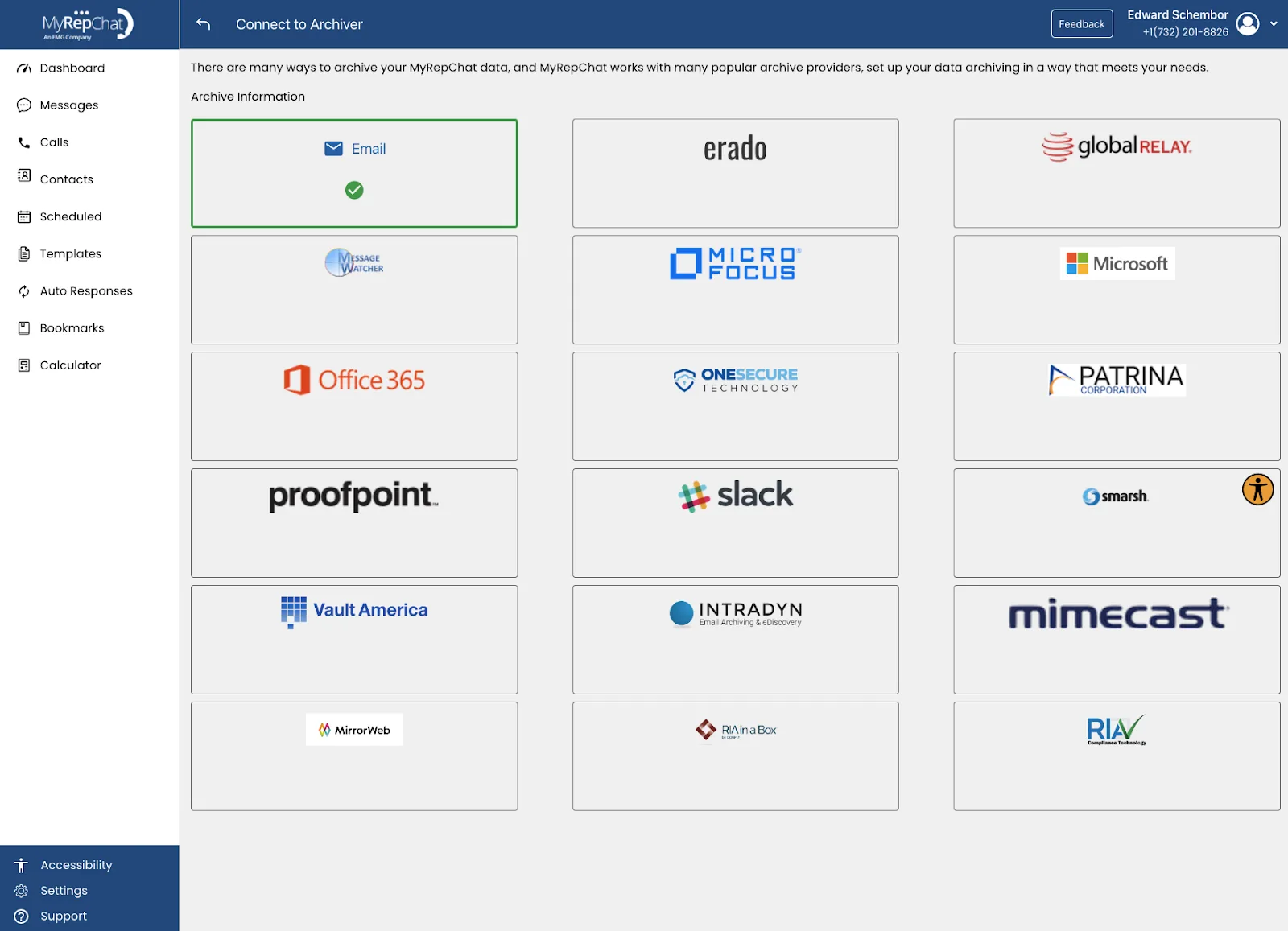
Step 3: Select Connect to Archiver in Archives and Reports
Select the Connect to Archiver option in Archives and Reports.
Step 4: Select the Email Archiver option
Step 5: Enter details to provide access to Greenboard
Enter the following values for each field:
Email Address: Contact support@greenboard.com for a custom address
Sender Address: Leave Blank
Sender Name: Leave Blank
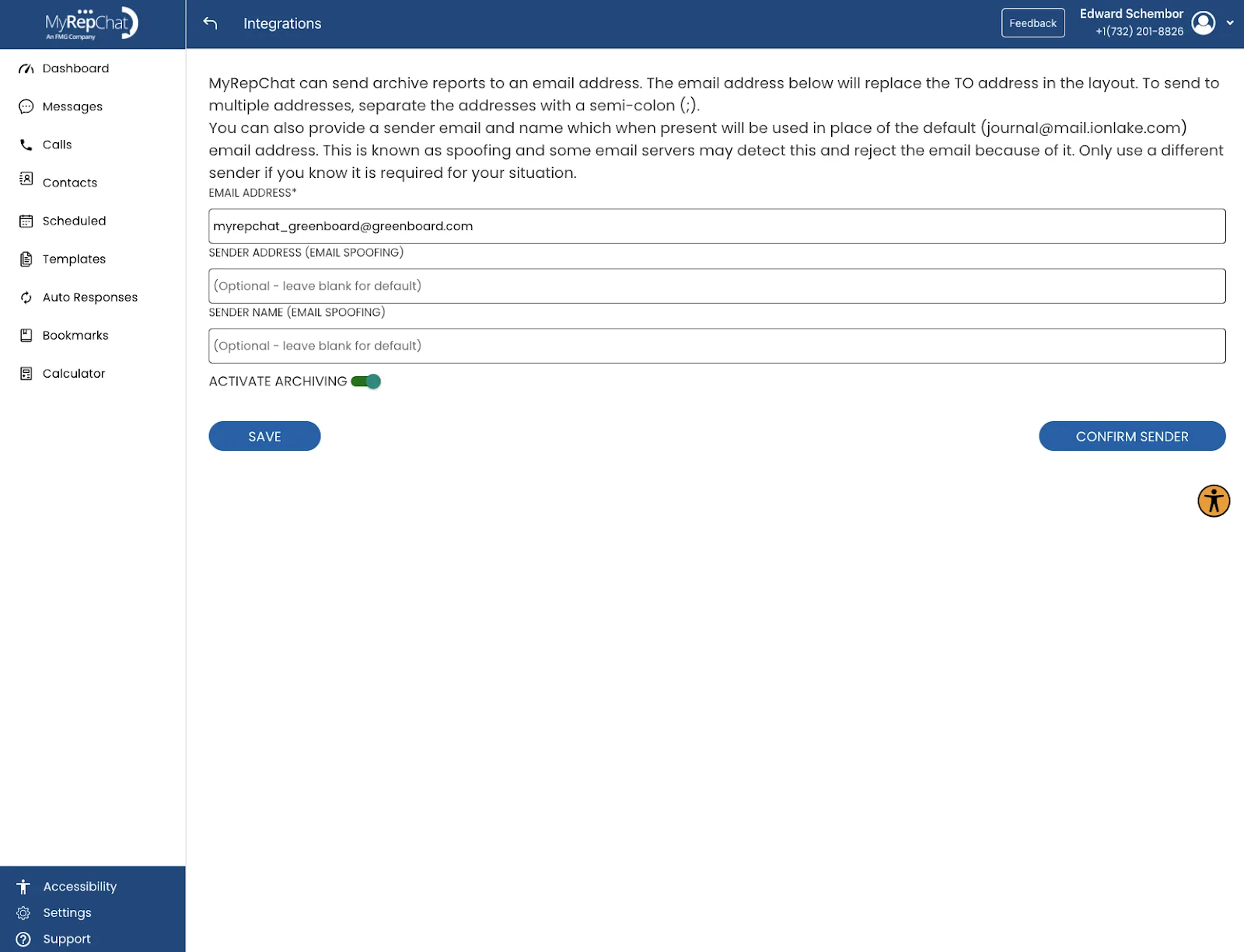
Important: Please do not use the example email in the screenshot. You must use a custom journaling address for your specific account.
Step 6: Activate archiving
On the same page, make sure the Activate Archiving switch to On, then press the CONFIRM SENDER button then the SAVE button.
Email support@greenboard.com once this step is complete.
Step 7: Integration completed
Your organization’s MyRepChat data should begin flowing to the Greenboard archive within the next 24 - 48 hours.
Questions? Contact support@greenboard.com.